How to Add Alt Text to WordPress Images at Scale (2026)
By AutoBoost Team · 2026-06-22 · 9 min read
Most WordPress sites are carrying hundreds of images with no alt text at all. It is the single most neglected on-page field.
Why does it get ignored so consistently?
- It lives behind a media-library click most editors never make.
- Nobody enjoys writing a sentence about a photo of a desk.
This guide covers what alt text actually does, what good alt text looks like, and how to fix it across an entire library without typing the same description a thousand times.
Key takeaways
- Alt text is an accessibility feature first and an image-SEO signal second. Treat it that way and both jobs get done.
- Good alt text describes the image plainly in context. It is not a place to stuff keywords, and purely decorative images should get an empty alt attribute, not a description.
- You cannot fix a problem you cannot see. Run an audit to find every image and post missing alt text before you start writing anything.
- Bulk generation gets you 90 percent of the way fast, but a human should review descriptions for photos that carry meaning. AutoBoost keeps you in that loop: nothing is written back until you approve it.
What alt text is, and why it matters
Alt text (the alt attribute on an img tag) is a short written description of an image. Its original and primary purpose is accessibility.
Here is what it does in practice:
- Screen readers read it aloud. A blind or low-vision visitor knows what the image shows.
- It appears when an image fails to load. On a slow connection, the alt text stands in for the picture.
It is, quite literally, the alternative to seeing the picture.
The SEO benefit is real but secondary. Search engines cannot see inside a JPEG, so they lean on three things to understand what an image depicts:
- The
altattribute. - The file name.
- The surrounding text.
Good alt text is how you earn placement in Google Images, and image search drives a meaningful slice of traffic for recipe sites, product catalogues, travel blogs and anything visual. It also adds a little topical context to the page as a whole.
Here is the part people get backwards. If you write alt text purely to chase rankings, you usually produce text that is worse for both accessibility and SEO.
Tip: Write it for a person who cannot see the image, naturally and in context, and you will satisfy the search engines as a side effect.
The accessibility framing is the correct one. In many jurisdictions it is also a legal expectation, not a nice-to-have, including:
- The EU Accessibility Act.
- The UK Equality Act.
- WCAG-aligned public-sector rules.
What good alt text actually looks like
Good alt text describes what is in the image, briefly, in a way that makes sense where the image sits. It is a sentence a friend might say if they were describing the photo to you down the phone.
A few principles hold up across almost every case:
- Describe, do not label. "Photo of a kitchen" tells a screen-reader user nothing. "A small galley kitchen with white shaker cabinets and a butler sink under the window" tells them what they are missing.
- Keep it concise. Aim for roughly 5 to 15 words, under about 125 characters. Some screen readers truncate longer strings, and a paragraph is exhausting to listen to.
- Read it in context. If the caption or body text already names the subject, the alt text does not need to repeat it. Avoid redundancy.
- Do not start with "image of" or "picture of." Screen readers already announce that it is an image. You are wasting the listener's first few words.
- No keyword stuffing. Cramming "cheap plumber Glasgow emergency plumber 24 hour plumber" into an alt attribute reads as spam to both screen readers and Google, and can actively harm you.
There is one important exception. Decorative images get an empty alt attribute (alt=""), not a description.
Background textures, divider lines, a stock flourish that adds nothing to meaning: these should be silent so a screen reader skips them rather than announcing noise.
An empty alt is a deliberate, correct choice, not a missing one. The skill is knowing which images carry meaning and which are wallpaper.
Bad alt text versus good alt text
| Image | Bad alt text | Why it fails | Good alt text |
|---|---|---|---|
| Product photo of running shoes | shoes | Too vague, no useful detail | Blue Nike Pegasus 41 road running shoes, side view |
| Recipe hero shot | image of food yummy delicious | Filler, says nothing real | A bowl of creamy mushroom risotto topped with parmesan and parsley |
| Team headshot | IMG_4821.jpg | Raw file name, machine noise | Sarah Patel, lead physiotherapist, smiling in the clinic |
| Local service banner | plumber glasgow emergency plumber cheap plumber | Keyword stuffing | Plumber fixing a leaking pipe under a kitchen sink |
| Decorative section divider | decorative line graphic blue | Announces useless noise | `` (empty alt, skipped by screen readers) |
| Infographic / chart | chart | Hides the data from non-sighted users | Bar chart showing organic traffic rising from 2k to 9k visits over six months |
The pattern is consistent. Bad alt text falls into one of three traps:
- It says nothing.
- It says the wrong thing (the file name).
- It tries to game search.
Good alt text describes the meaningful content in plain words.
Step one: find the images missing alt text
You cannot bulk-fix what you have not measured. On a site of any size, manually clicking through the media library to find blanks is hopeless.
Worse, the media library does not even tell you which alt attributes are actually used in published posts versus sitting unused.
This is where an audit comes first. AutoBoost connects to your site through the AutoBoost connector plugin and an Application Password, then scans your published content and surfaces a Content Health Overview:
- How many posts you have.
- How many need attention.
- Which specific SEO fields are missing across the library.
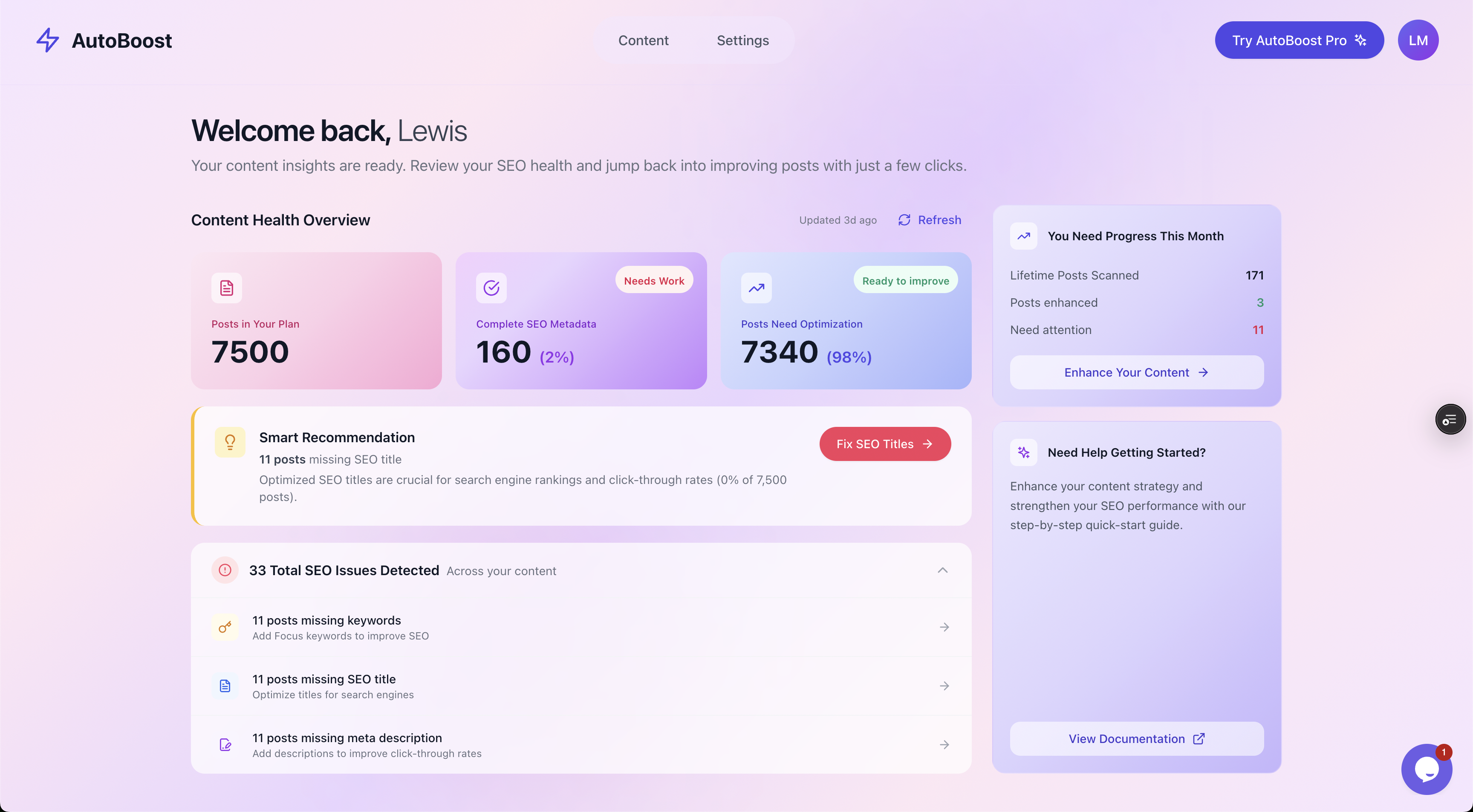
The Content Health Overview turns "I think a lot of our images are missing alt text" into an exact count you can work through.
From there you can filter the content list down to only the posts with gaps. The filter chips let you isolate posts missing an SEO title, a focus keyword, a meta description, or other fields, so you are working a clean queue instead of guessing.
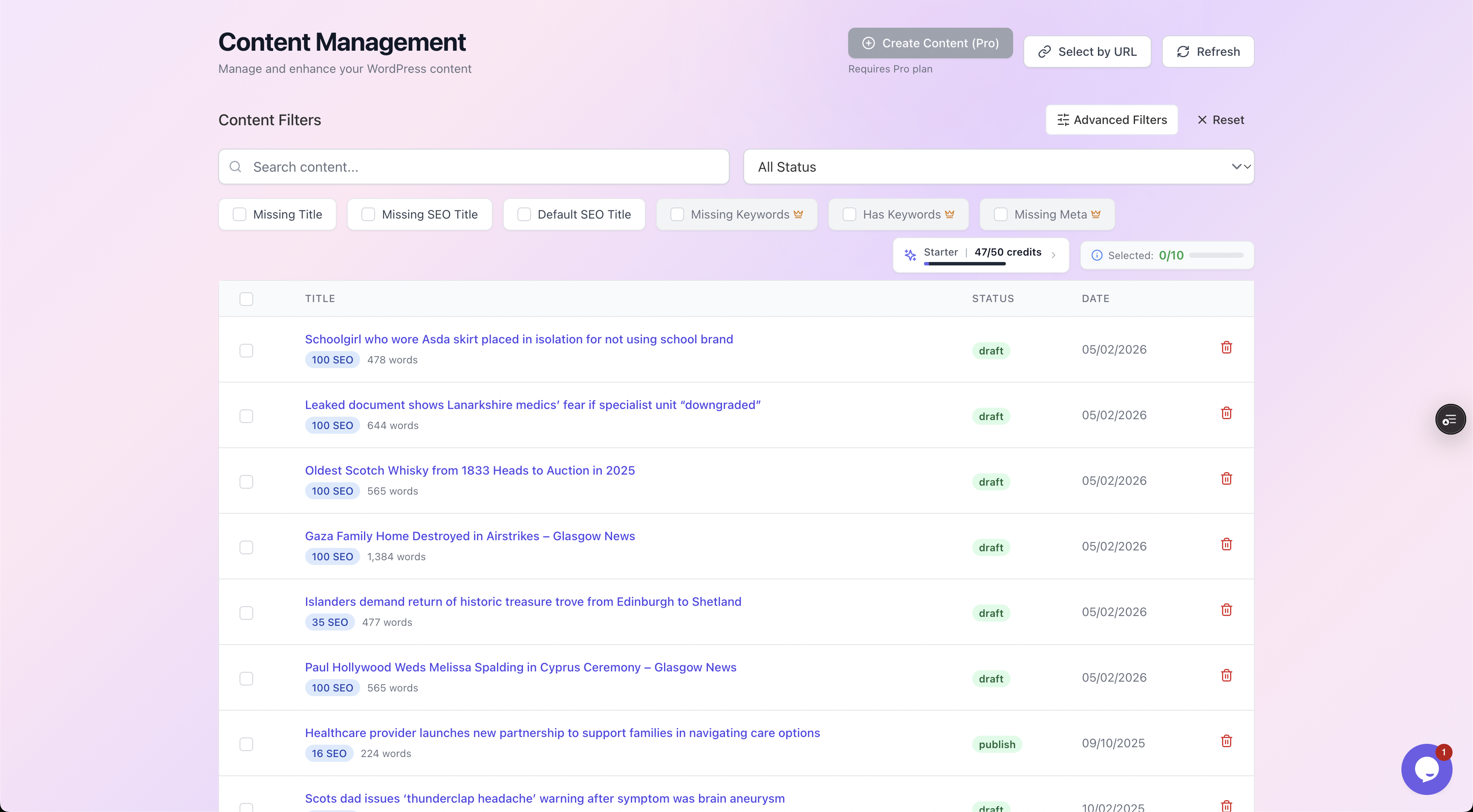
Filter the library down to exactly the posts that need work, then process them as a batch rather than one slow click at a time.
If you want the full method for auditing every on-page field at once, not just images, our walkthrough on the WordPress SEO audit for missing fields covers the whole content-health pass end to end.
Step two: generate alt text at scale, then review
Once you know which images and posts have gaps, the bottleneck becomes writing. Describing a thousand images by hand is the kind of task that gets started, stalls and never finishes.
This is exactly the repetitive, high-volume metadata work that automation is good at.
AutoBoost generates draft alt text (and the rest of your metadata) from a template library. You pick the enhancement you want and it produces optimised drafts for the queue, written back into whichever SEO plugin you already run.
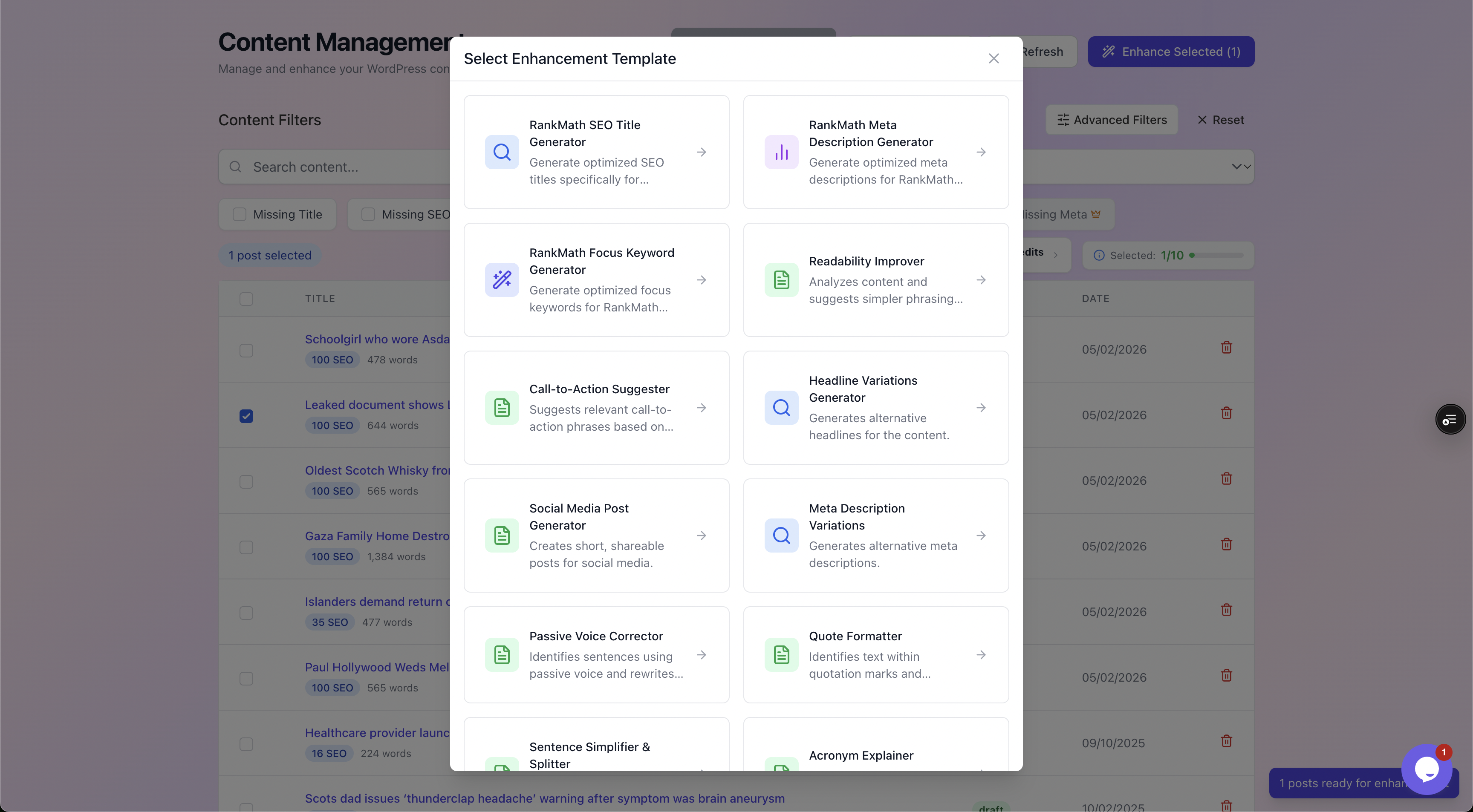
Choose the enhancement template, point it at your filtered queue, and AutoBoost drafts the descriptions for you.
The review step is non-negotiable
AutoBoost is human-in-the-loop by design. It generates, it shows you the current value next to the proposed one, and nothing is written back to your live site until you approve it.
For each item you get:
- A before and after view.
- A quality checklist.
- Approve or Reject controls.
For alt text this matters more than for most fields. The AI looks at each image (a small, low-resolution copy) and reads its file name, caption and the text around it, but a human is still the best judge of:
- Which images are decorative.
- Which carry meaning a machine might miss.
- Whether a description reads naturally on the page.
The realistic workflow is simple:
- Let it draft the whole batch.
- Approve the obvious correct ones in seconds.
- Spend your actual attention on the handful that need a human touch.
You end up with full coverage over time instead of never. On a 7,500-post library that means working through it in batches, highest-traffic posts first, because even the Agency plan includes only 1,000 credits a month (or use your own OpenAI key on Pro or Agency, which does not use up credits).
Watch out: do not auto-approve everything blind. A generated description for an abstract or symbolic image can be confidently wrong, and a decorative image that gets a description instead of an empty alt is technically worse than leaving it blank. Skim the batch. The review step exists for a reason.
A worked example
Say you run a 7,500-post recipe blog and the audit reports that most of your hero images have no alt text. Here is the before and after on one post.
Before: the hero image of your mushroom risotto has alt="" set automatically by an old import, or no alt attribute at all. The result:
- A screen-reader user hears "image" and moves on.
- Google Images has nothing to index.
- The post's image SEO score is flagged red in the audit.
Step through it:
- Filter the content list to posts flagged for missing image fields.
- Run the alt-text enhancement template across that filtered batch.
- AutoBoost drafts
A bowl of creamy mushroom risotto topped with shaved parmesan and fresh parsley. - You open the preview, see the empty current value next to the proposed description, check it reads naturally, and click Approve.
- The description is written back into your RankMath / Yoast setup and onto the live image.
After: the gap is closed across that post:
- The screen reader now reads a real description.
- The image is eligible for Google Images.
- The audit score moves from red to green.
Multiply that across the library and you have closed a gap that was quietly costing you both accessibility compliance and image-search traffic. The preview-and-approve step looks like this:
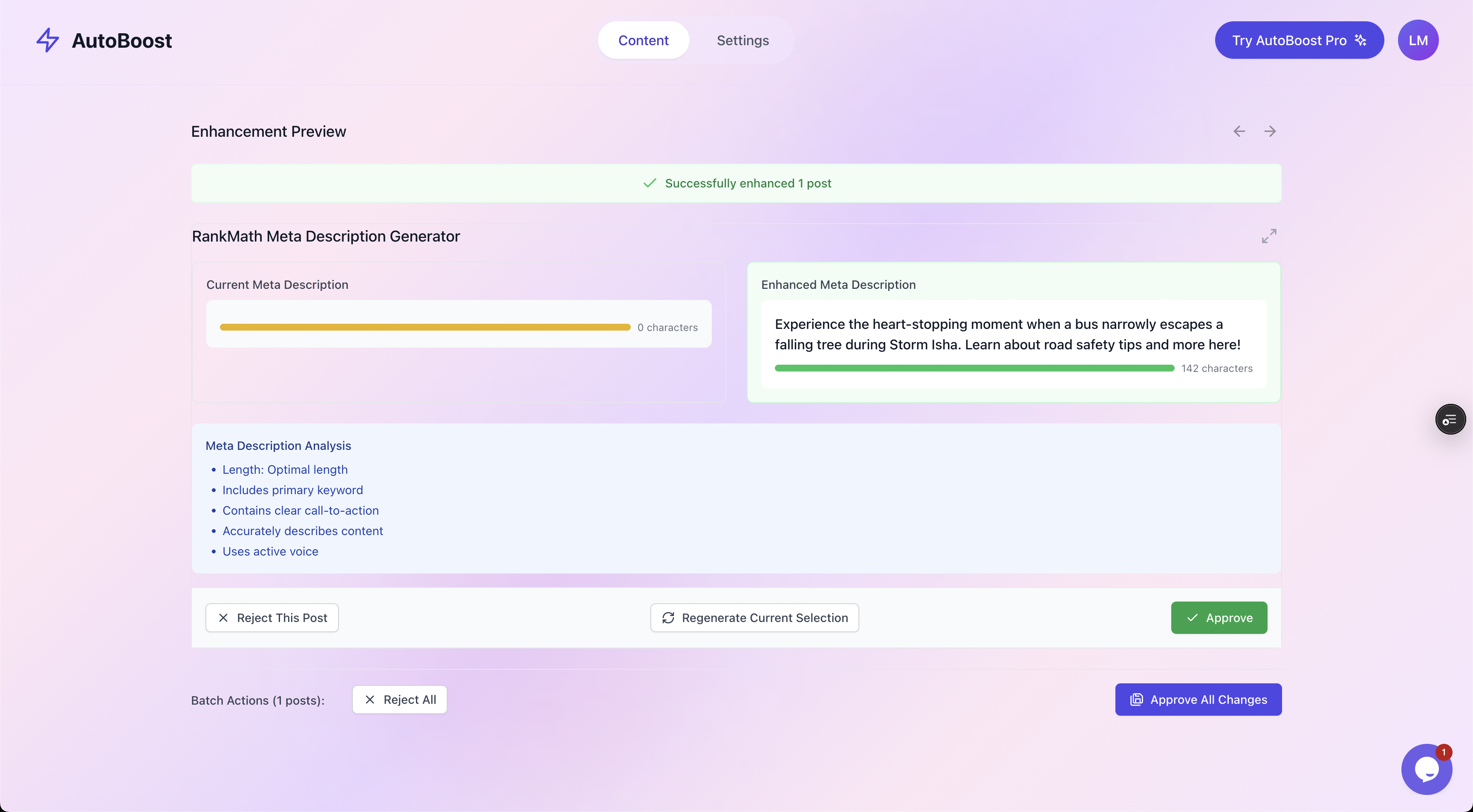
Every generated value is shown current-versus-enhanced with Approve and Reject controls. The same preview-and-approve pattern applies to alt text.
How AutoBoost fits with your existing setup
AutoBoost does not replace RankMath, Yoast or AIOSEO. It works with RankMath and Yoast, and can read All in One SEO data.
Here is what it does instead:
- Reads the gaps your SEO plugin already knows about.
- Generates the missing values.
- Writes them back into that plugin's fields once you approve.
If you are weighing those three up in the first place, our comparison of RankMath versus Yoast versus AIOSEO breaks down which suits which kind of site.
Because the work is batched and reviewed, it scales with your library rather than your patience. The plans are sized by AI credits a month and posts per bulk run:
- Free ($0): 5 credits a month, 3 posts per run, 1 site.
- Starter (
9/mo): 50 credits, 25 per run, 1 site. - Pro ($49/mo): 250 credits, 125 per run, 3 sites.
- Agency ($99/mo): 1,000 credits, 500 per run, 10 sites.
You can see the breakdown on the pricing page and the full set of bulk fixes on the features page.
Honest caveat: alt text, like the rest of AutoBoost's automation, handles the repetitive metadata, not the quality of your actual content. Adding alt text to a thin, unhelpful post will not make it rank. It removes a blocker and an accessibility failing; it does not manufacture authority or backlinks. Use it to clear the busywork so you can spend your time on the writing that actually moves the needle.
If you want the bigger picture of how all of this hangs together, two reads help:
- The auto SEO for WordPress overview shows where alt text sits within a full automated on-page pass.
- Adding focus keywords in WordPress covers the same find-then-fix method for another commonly missing field.
Alt text examples by image type
Good alt text depends on what the image is. A logo needs the brand name, while a chart needs its main point. We collected real alt texts from live sites for 15 common image types and marked which ones work:
- Logos
- Headshots and team photos
- Product images
- Charts and graphs
- Tables shown as images
- Maps
- Icons
- Screenshots
- Infographics
- Diagrams and flowcharts
- Book covers
- Food and menu photos
- Hero banners and header images
- Social media and Instagram feed images
- Property photos
Frequently asked questions
Do I really need alt text on every single image?
No. Every meaningful image needs alt text, but purely decorative images (dividers, background flourishes, spacer graphics) should have an empty alt attribute (alt="") so screen readers skip them. The goal is not "describe everything," it is "describe everything that carries meaning and silence everything that does not."
Will adding alt text in bulk get me penalised by Google?
Adding genuinely descriptive alt text will not. What gets penalised is keyword-stuffed, spammy or repetitive alt text. Because AutoBoost shows you each draft before it goes live and you approve them, you control the quality. Bulk does not mean careless. It means you process a queue with review rather than typing every field from scratch.
Does AutoBoost overwrite alt text I have already written?
The workflow surfaces images that are missing alt text and proposes values, and every change is shown as current-versus-proposed with Approve and Reject controls before anything is written. You decide what gets changed. Nothing is published to your live site without your approval, so your existing, hand-written descriptions stay as they are unless you choose to update them.
How is alt text different from the image caption and title?
The caption is visible text shown beneath the image for all readers. The title attribute is a tooltip on hover (largely ignored by search and screen readers, so do not rely on it). Alt text is the screen-reader description and the image-SEO signal, and it is the one that actually matters for accessibility and Google Images. They serve different jobs, so do not just copy one into the others.
Can I do this for a WooCommerce or e-commerce catalogue?
Yes, and product images are one of the highest-value places to get alt text right because product image search converts. The same audit-then-bulk-generate-then-review flow applies. See our e-commerce solutions page for how this works across a product catalogue, or solutions for bloggers if your library is editorial. You can also connect it to your other tooling via the integrations page.